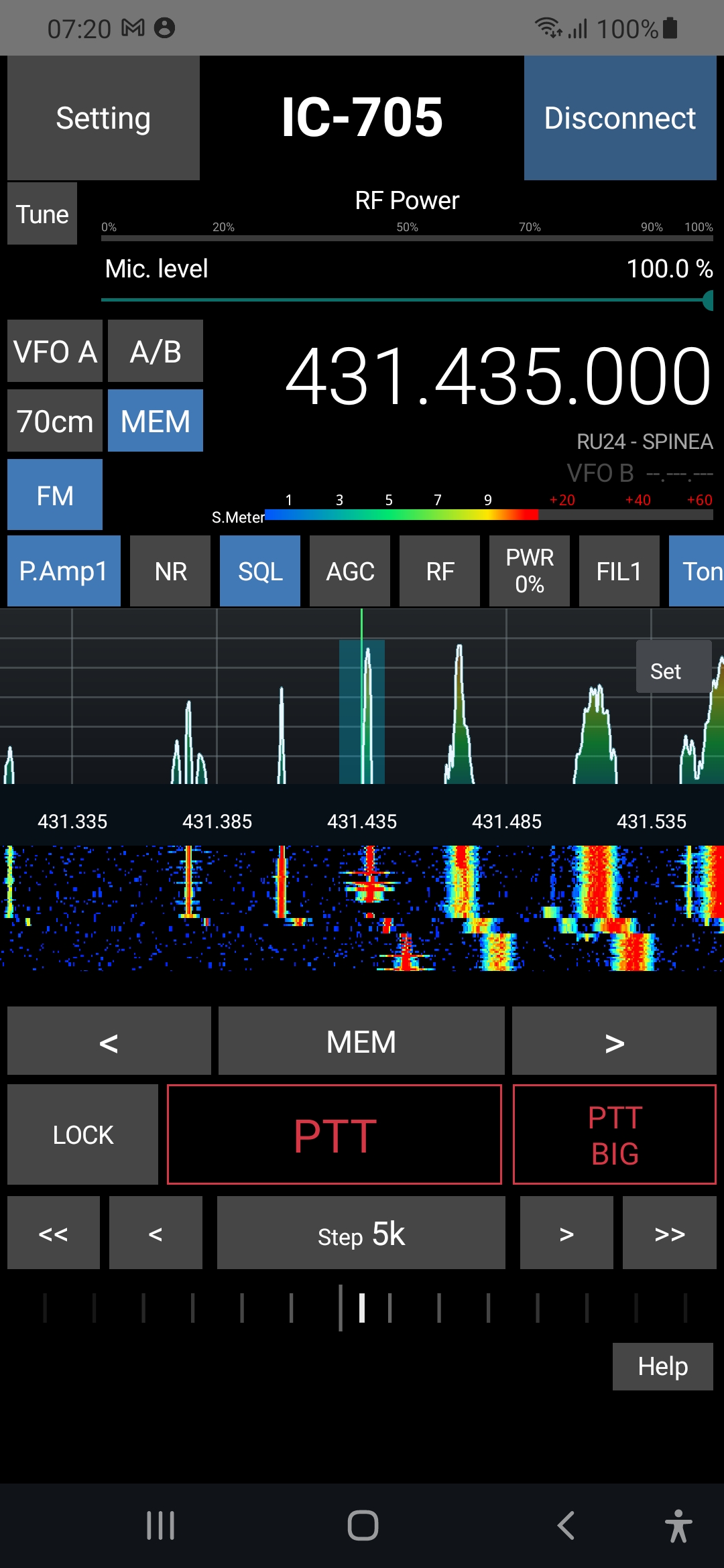
RX and TX audio
Listen to the radio, use your device's microphone and control PTT during a remote session.
Remote control for amateur radio
Control the Icom IC-705, IC-9700, IC-7300MK2, IC-7610 and IC-7851 from Android over the network, with RX/TX audio, VFO, spectrum, waterfall and integrated digital tools.
Requires Android 8 or later and a compatible radio correctly configured for network control.
Complete remote control
The radio's main functions and operating tools are brought together in an interface designed for remote use.
Listen to the radio, use your device's microphone and control PTT during a remote session.
Control frequency, operating mode, VFO, split, duplex and the radio's main commands.
View the live spectrum and waterfall to quickly follow activity across the band.
Monitor S-meter, RF Power, SWR, ALC and current; adjust filters, AGC, NB, NR, notch and attenuator.
Recall radio memories and save separate profiles for local, remote or Access Point connections.
A dedicated screen with waterfall, decoding and operating tools for FT8 and FT4 digital modes.
Dedicated modules for reception, transmission, tuning and message management in CW and RTTY.
Receive and transmit SSTV images and decode HF weather fax directly in the app.
Manage QSOs in the ADIF log. Once your accounts are configured, contacts are automatically updated on LoTW, eQSL and QRZ.com.
Inside the app
Explore the Radio Remote for ICOM screens: controls, spectrum, waterfall and PTT.
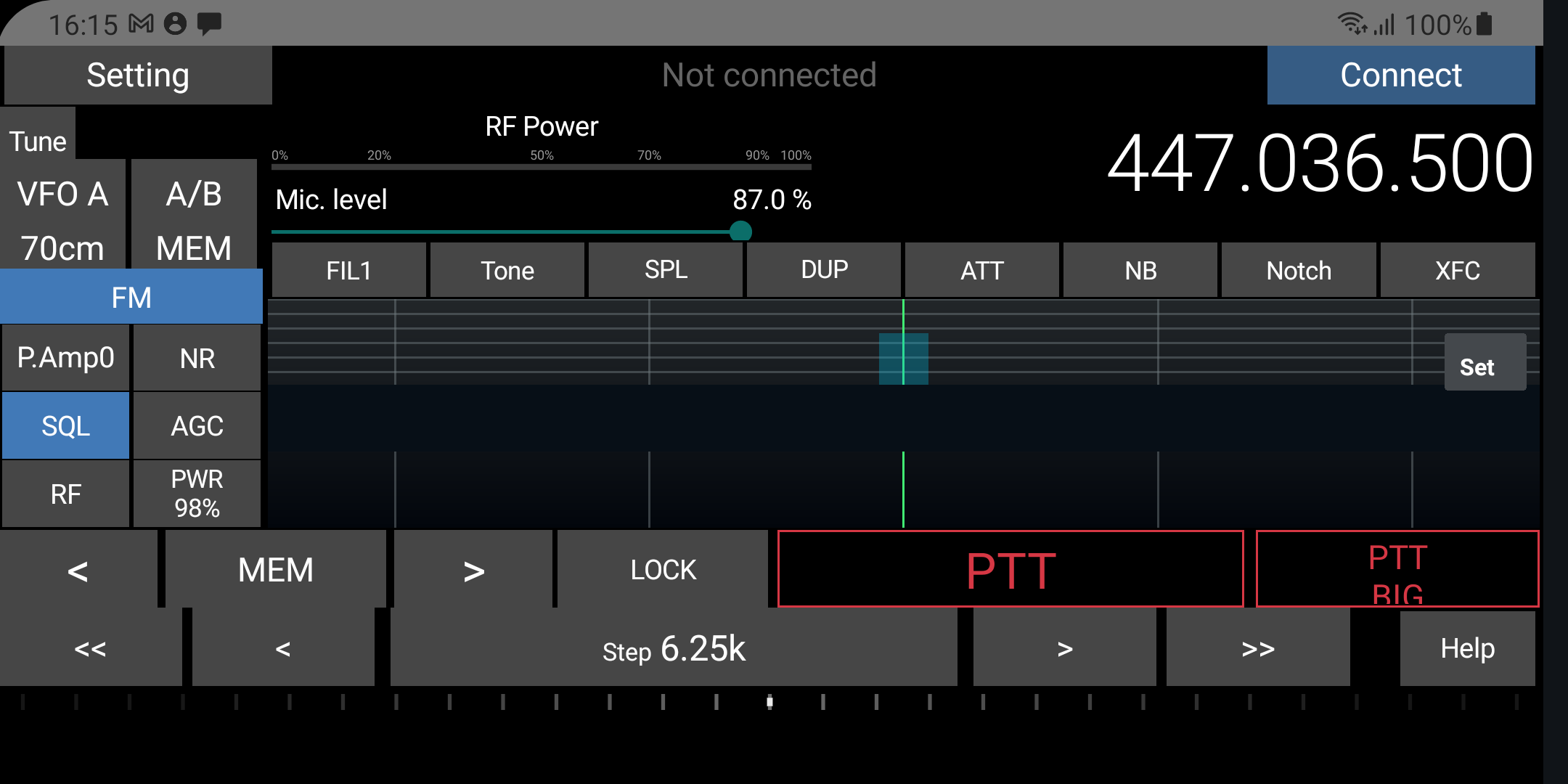 Landscape interface · Spectrum · Waterfall · PTT
Verified compatibility
ICOM
Direct Wi-Fi connection in Access Point mode, or through your router in Station mode.
ICOM
Connection to the local network via Ethernet, with correctly configured local or remote access.
ICOM
Remote control through the radio network connection, with access configured.
ICOM
Remote control through the radio network connection, with access configured.
ICOM
Remote control through the radio's built-in Ethernet port, with network and credentials configured.
ANDROID
A smartphone or tablet with a microphone and enough resources for audio, spectrum and waterfall.
Getting started
For the first test, use your local network. Internet access requires a secure network configuration and a reachable public address.
Enable Network Control on the radio and check the ports, user name and password configured in the equipment.
Select IC-705, IC-9700, IC-7300MK2, IC-7610 or IC-7851 and enter the matching IP address or DDNS name, ports and credentials in the app.
Start the session, test reception audio and controls, then check frequency, antenna and power before transmitting.
Available now
Install the app on your Android device, choose IC-705, IC-9700, IC-7300MK2, IC-7610 or IC-7851 and configure the radio profile to begin remote operation.
Frequently asked questions
The current version is designed for the Icom IC-705, IC-9700, IC-7300MK2, IC-7610 and IC-7851.
No. Radio Remote for ICOM is dedicated to supported Icom radios; SCU LAN Remote remains the separate app for the Yaesu FTDX10 and FT-710 through SCU-LAN10.
Yes, if the remote network is configured correctly. You may need DDNS, UDP port forwarding and a public IP address not behind CGNAT.
No. The app communicates directly with the compatible radio's network functions; the radio, network and credentials must be configured correctly.
Radio Remote for ICOM is available on Google Play for devices running Android 8 or later.
Do you use a Yaesu radio?
The original page remains dedicated to the FTDX10 and FT-710 controlled through SCU-LAN10.